


Small explanation on the duplication of materials.
Lets build a wall with a certain material, called “Material 1”.
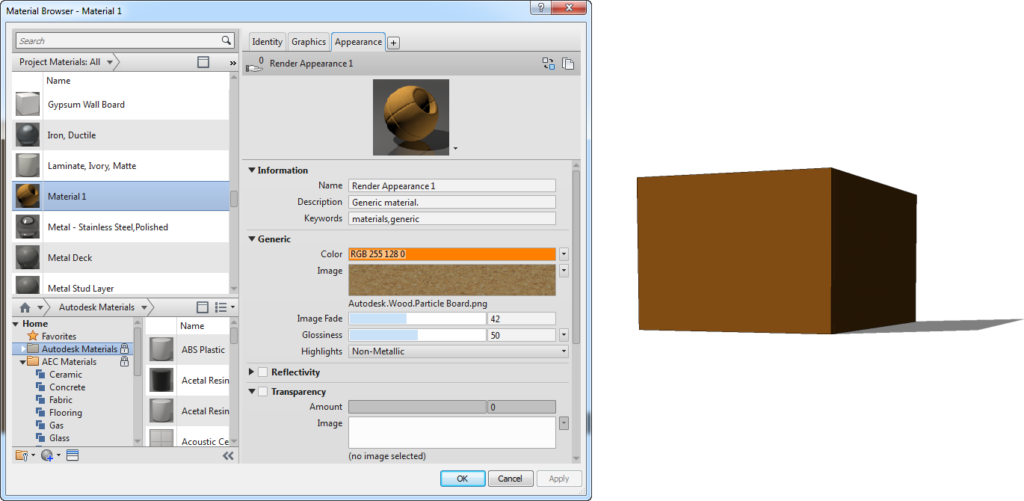
When you duplicate the material (using contextual menu) to “Material 2”, it copies all material settings. You will see a sharing symbol (the hand) with the number of materials that also use the same render appearance as this selected one.
 | 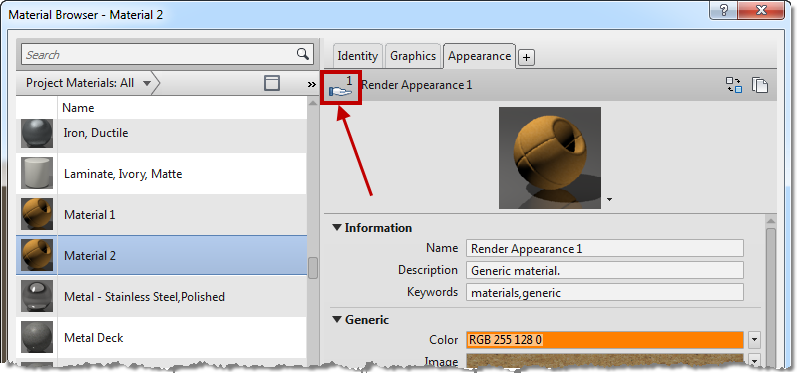 |
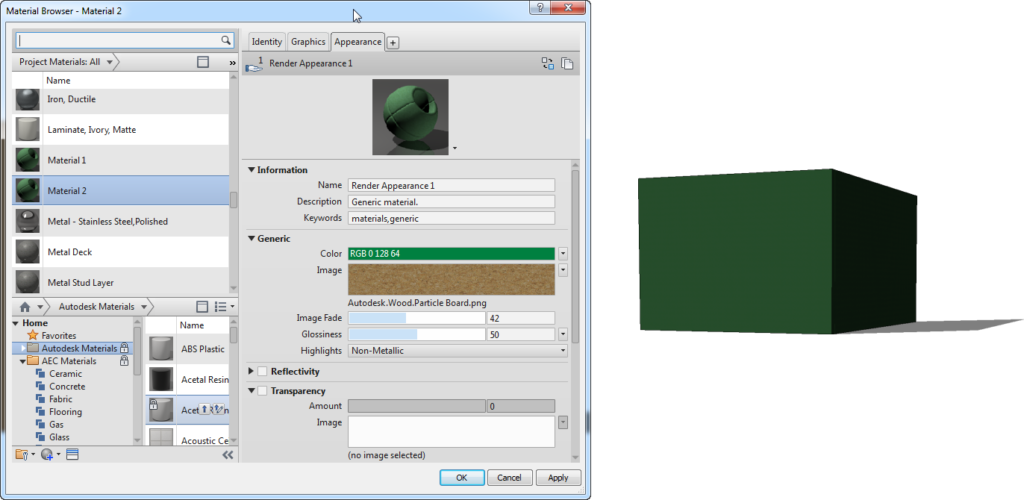
This means that when you change the appearance properties of “Material 2”, it will also affect the definition of “Material 1”, which is not desired in this case.
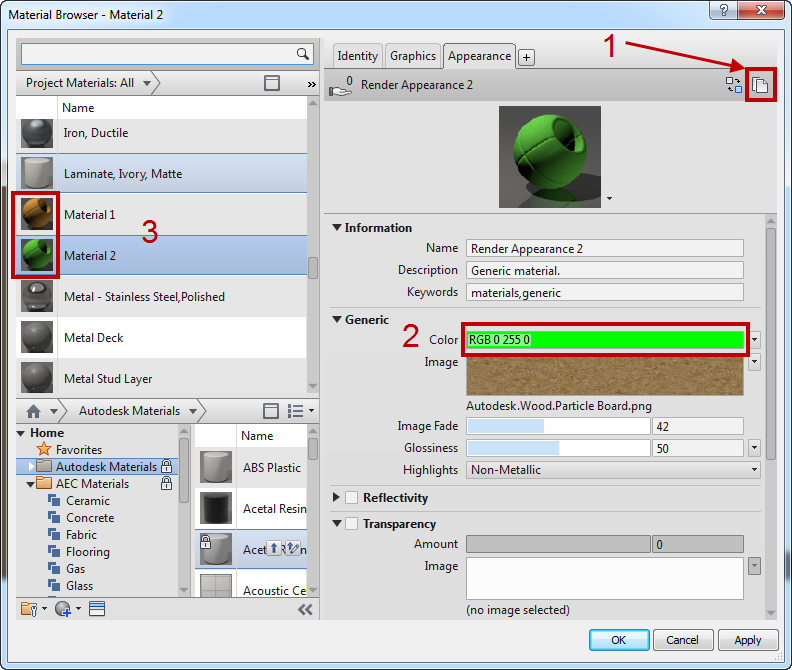
When you want to avoid that color change, but you still want to keep some other appearance settings, you first have to duplicate the appearance, so it is unique and not used by other materials (look at the hand).
Of course, this can also be avoided by creating a new default material by using the “Create New Material” function at the bottom of the dialog. But in that case you need to set your material from scratch.

Credits to: https://revitbeyondbim.wordpress.com
Leave a Reply